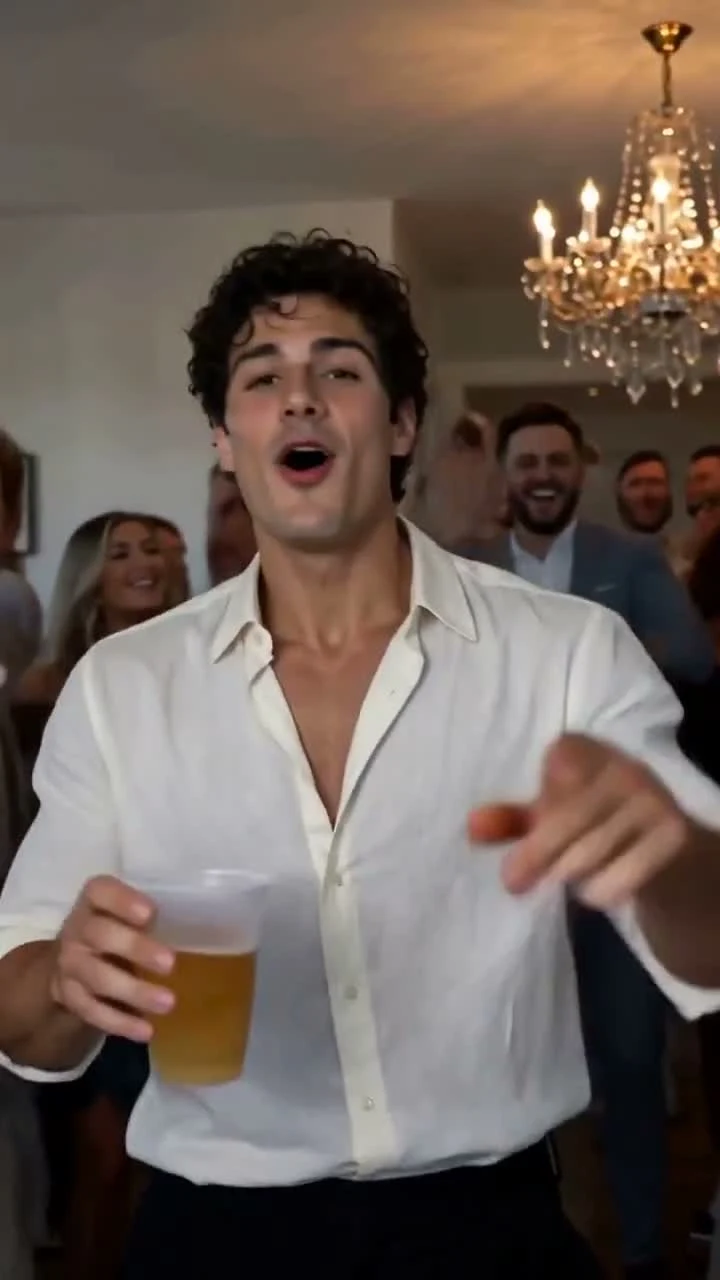
A recognizable subject is the center of a great Burning Bridges AI video. The party, movement and lighting should support that person. If the face changes noticeably halfway through the clip, a beautiful opening frame cannot rescue the full performance.
The right approach is precise and practical: supply a clear portrait, inspect the moments that challenge continuity and change one useful input factor at a time. Burning Bridges AI keeps the scene preparation focused. Its current studio takes one adult portrait and generates a 15-second party performance using prepared scene and audio references. Use the review method below on the completed playback and downloaded file.
Check Burning Bridges AI video face drift during movement
People look different when they smile, turn or move from bright light into shadow. Those changes alone are not face drift. Look instead for a shift in the features that make the person recognizable: eye spacing, nose shape, jawline, hairline and the relationship between them.
A useful question is: “Does this still look like the same adult after the movement finishes?” A brief blurred frame during motion deserves different treatment from a stable close-up that now resembles someone else. Review at normal speed first, then pause where something feels inconsistent.
Give the upload a clear visual subject
Choose an original portrait with one visible adult and a face large enough to inspect comfortably. A group-photo crop can leave too little facial detail even when the resulting file has large dimensions. Heavy smoothing, strong shadows and sunglasses can also obscure information that would otherwise help describe appearance.
Use even light and a direct or gently angled view. A waist-up portrait gives context for hair, clothing and proportions without reducing the face to a tiny part of the image. The best preparation is clarity: a readable person in a readable photograph.
For a detailed selection checklist, use the Burning Bridges AI photo guide.
Inspect the moments where appearance changes most
Watch the completed clip once for its overall impression. Then make a second pass through four moments:
- The opening. Compare the first clear face with the source portrait. Establish what the generated subject looks like before judging later continuity.
- The turn. Observe the transition from frontal to angled views. Look for consistent facial structure after the head settles.
- The overlap. Check moments when a hand or cup passes near the face. The uncovered face should still read as the same person.
- The ending. Compare the final clear expression with the opening, including hairline, clothing and accessories.
These checks turn a vague reaction into useful evidence. “The jaw changes after the side turn” tells you much more than “The video feels wrong.”
Use the sample as a review exercise
The screenshot above comes from a reviewed video produced with our earlier motion-guided workflow. It is useful for seeing how party lighting, a moving subject and close gestures share a portrait frame. The current 15-second native H3 workflow can produce different results.
A screenshot shows one instant. It cannot establish continuity across an entire performance, and it cannot establish likeness to a portrait you have not seen. That is why account playback and the downloaded file are valuable parts of the Burning Bridges AI workflow: the decision belongs to the entire video.
Make the next attempt informative
If you decide to generate again, identify a specific weakness in the source photo before spending another entitlement. Replace a blurred image with a sharp original, choose a view with both eyes visible, or remove the ambiguity of a crowded background by choosing a different portrait.
Keep a short note of what changed. Replacing the lighting, angle, outfit and expression all at once makes it difficult to learn which choice helped. The current studio prepares the scene prompt; it does not provide custom identity sliders or a separate face-repair mode.
Judge quality in the right order
Start with recognizability, then check the hands, props, outfit and overall motion. Only then decide whether the clip tells the story you want to share. A sharp file and a coherent face are separate qualities; our video resolution guide explains how to assess the image itself.
Burning Bridges AI's strength is a clear, dedicated route from portrait to party video, with a prepared creative brief and a place to review completed work. Choose a strong source portrait and open the studio.
A few more answers
Frequently asked questions
- What does face drift mean in an AI video?
- Face drift means a generated person's apparent identity changes as the clip progresses, such as a shifting jawline or different-looking eyes after a turn. It is different from ordinary expression or lighting changes.
- Can a clearer portrait guarantee an identical face?
- A clear portrait supplies a better appearance reference, but it cannot guarantee identity through every generated frame. Review the entire completed clip, especially turns and moments when a hand crosses the face.
- Is there a face-lock setting in Burning Bridges AI?
- The current studio uses a single adult portrait and a prepared prompt. It does not expose a face-lock control. Your practical controls are the source portrait you choose and the completed result you decide to use.