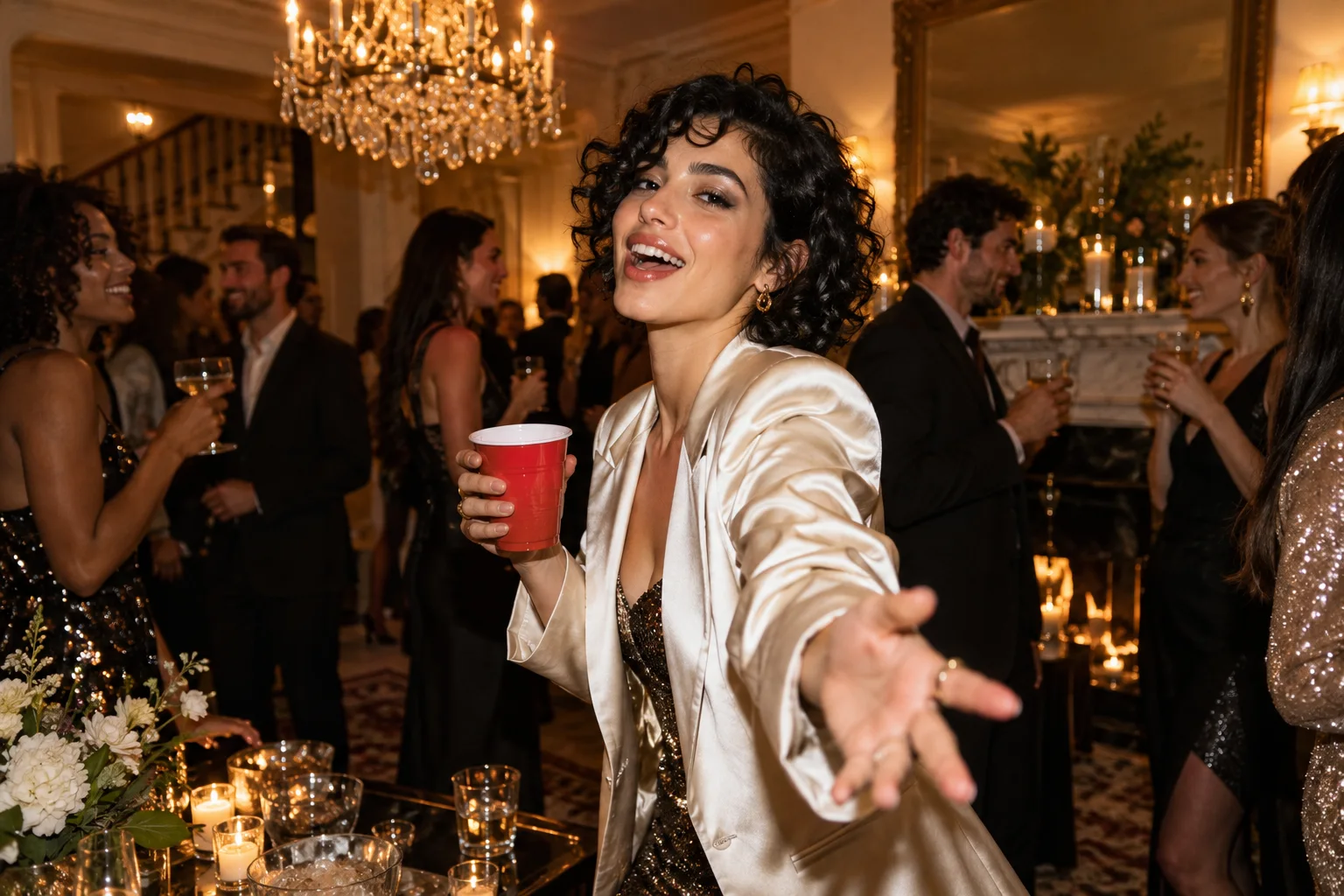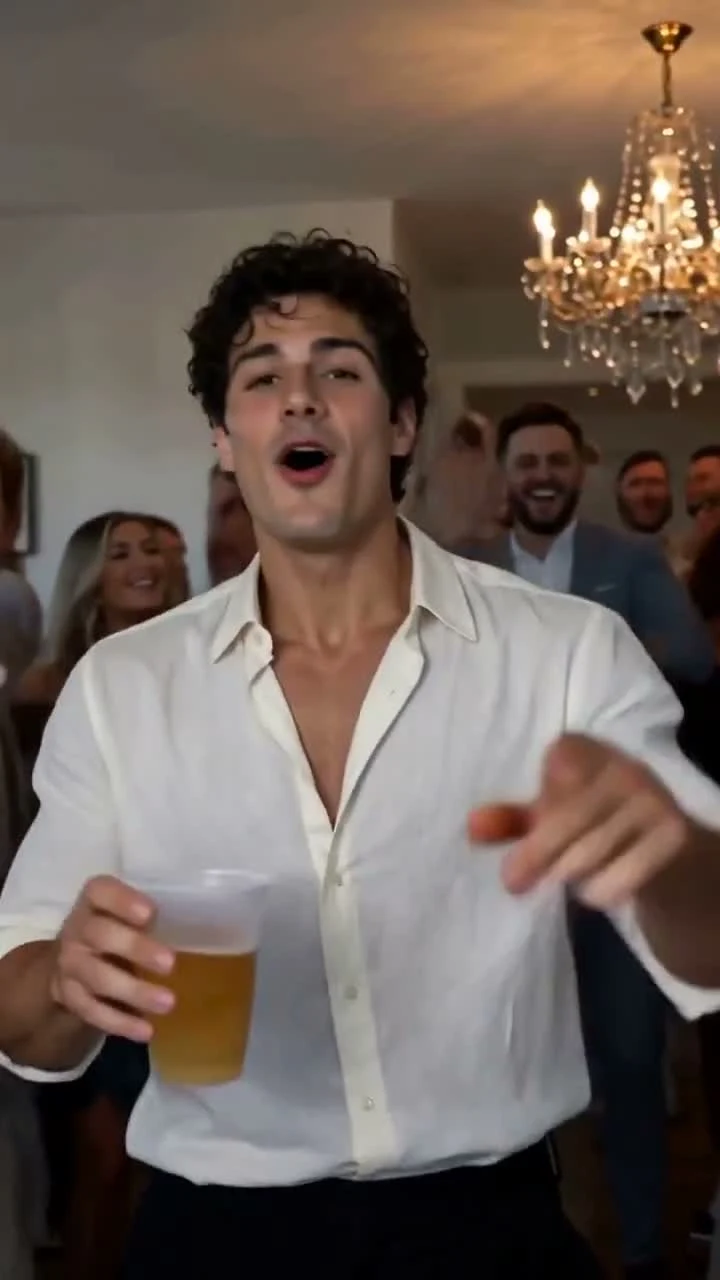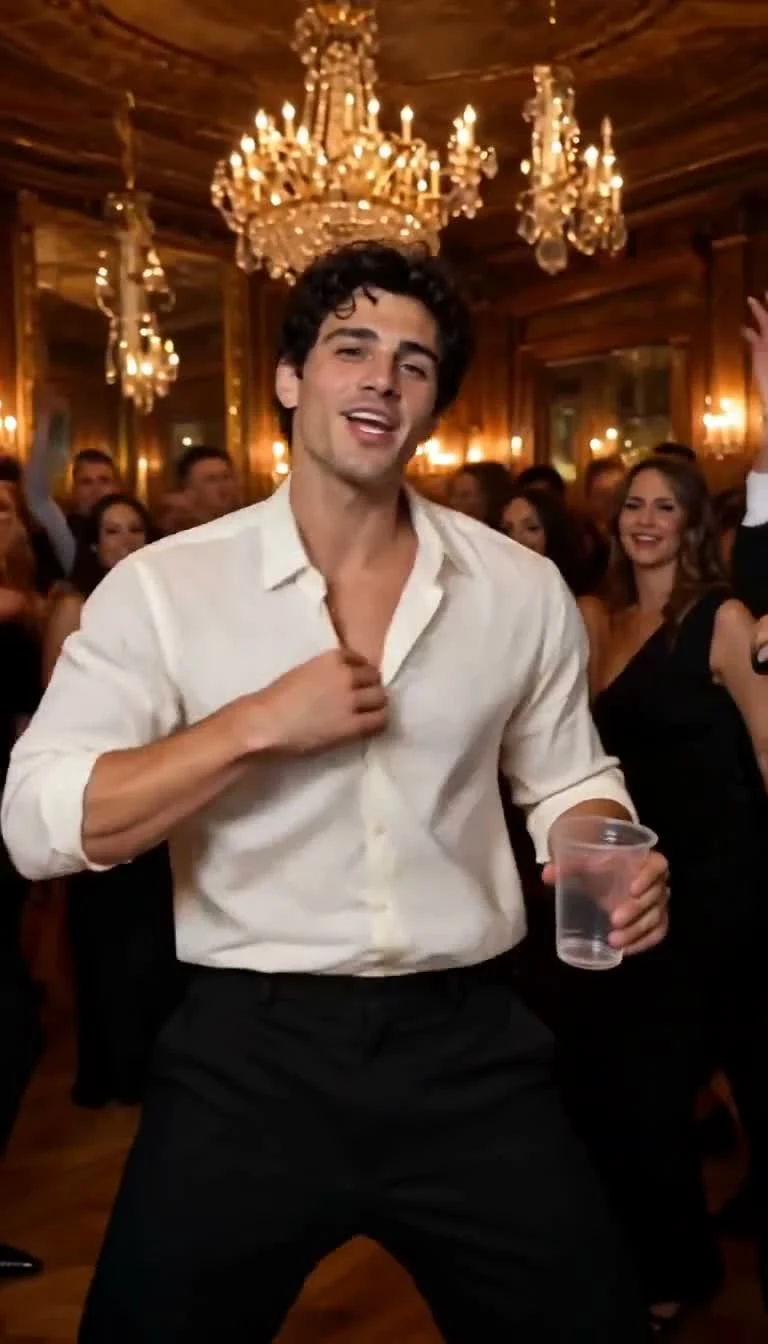
A strong video specification gives you concrete numbers and a real file to inspect. Burning Bridges AI uses a native 768P generation setting and a 15-second duration target for its current portrait party workflow. Its public sample measures 768 × 1344 pixels, 24 frames per second and 15.08 seconds, with both picture and audio in an MP4 file.
That gives you a clear starting point for a bold vertical post. The studio prepares the generation settings, storyboard and audio reference; you bring one strong adult portrait. Here is how to understand the output and keep it looking sharp through your final edit.
Burning Bridges AI video resolution and vertical framing
“768P” is the generation setting supplied to H3. “768 × 1344” is the width and height measured in the current public sample. The first describes the request; the second describes the actual delivered file.
The sample contains 1,032,192 pixels per frame. Its width-to-height ratio simplifies to 4:7. Although the recipe requests a 9:16 portrait composition, this delivered frame is slightly wider than exact 9:16. Keep that distinction in mind when placing the video into a social app's layout.
Our focused studio prepares these settings for you. You can concentrate on choosing a clear portrait and a compelling post idea instead of configuring a resolution ladder or a model-parameter panel.
Fit the portrait to your chosen social layout
Import the original downloaded video into your editor before adding text. Inspect whether the editor fits the entire frame with padding or fills its canvas by cropping the sides. Both change how the composition is presented, so check the face, cup and gestures through the complete sequence.
For a 9:16 canvas, do not assume that selecting the preset preserves every edge of this 4:7 sample. Preview the turn and near-lens hand movement before committing to a crop. Keep captions clear of the lead's face and important props.
Our TikTok and Instagram guide covers the cover frame, caption and finishing decisions that help the performance land.
What the current public sample establishes
The screenshot accompanying this article comes from the current 15-second native H3 workflow, using an AI-created fictional adult portrait. It is an actual generated-video frame. The source file measures 768 × 1344 pixels and includes native audio generated alongside the picture.
Those measurements describe this sample. A still frame does not establish facial continuity or mouth timing across an entire performance. Play the full video in our creation guide, then review each new generation on its own merits.
Some other articles retain explicitly labeled frames from an earlier 20-second, 720 × 1280 motion-guided sample. Those are historical examples, not the current workflow's output specification.
Check the original download before editing
Download the completed video from your account and open it independently. Use your player's file information or properties panel to inspect its frame dimensions and duration. Play the entire file with sound enabled.
Then inspect three things at ordinary viewing size:
- Facial detail. The eyes, mouth and hairline should remain readable through the moments you want to share.
- Moving edges. Look at fingers, the cup and clothing while the subject moves, not only while paused.
- Background stability. Check whether lights and neighboring figures distract from the main performance.
Resolution is one part of quality. A detailed face can still change between frames, and a sharp hand can still move unnaturally. The complete playback gives you the useful evidence.
Keep the editing chain simple
Use the original download as your editor input. A screenshot or screen recording adds an unnecessary step when you already have the file. Keep an untouched copy so you can compare the finished edit with its source.
Export the finished edit once, then review that exported file. Repeatedly downloading a posted version, editing it again and reposting can make softness and compression artifacts harder to trace. Check picture and sound after export as well as inside the editor.
Bigger dimensions are not an automatic detail upgrade
Exporting at 1080 × 1920 gives you a larger 9:16 canvas; it does not restore missing original detail. It may also change framing because the current sample uses a 4:7 frame. Inspect both the scale and the crop. If a later tool invents texture, check whether the face still represents the subject well.
Burning Bridges AI offers a powerful, understandable foundation: prepared portrait settings, a vivid party scene, native picture and sound, and account access to completed playback and downloads. Use the facial continuity guide to assess the person, then bring your strongest portrait to the Burning Bridges AI studio.
A few more answers
Frequently asked questions
- What resolution does the current workflow use?
- The current generation setting is native 768P in portrait composition. Its public sample measures 768 × 1344 pixels at 24 frames per second. Inspect your own downloaded file for its delivered dimensions.
- Can I select 1080p or 4K in the current studio?
- The current Burning Bridges AI workflow prepares its output settings for you and does not expose 1080p or 4K options. It uses native 768P generation.
- Is the public sample exactly 9:16?
- No. Its measured 768 × 1344 frame has a 4:7 aspect ratio. The recipe requests portrait 9:16 composition, but the actual delivered sample is slightly wider. Inspect any crop or padding applied by your social editor.
- Does enlarging the export add real detail?
- A larger export has more pixels, but resizing alone does not restore detail absent from the source. Judge the original face, hands and motion before choosing your editing export.