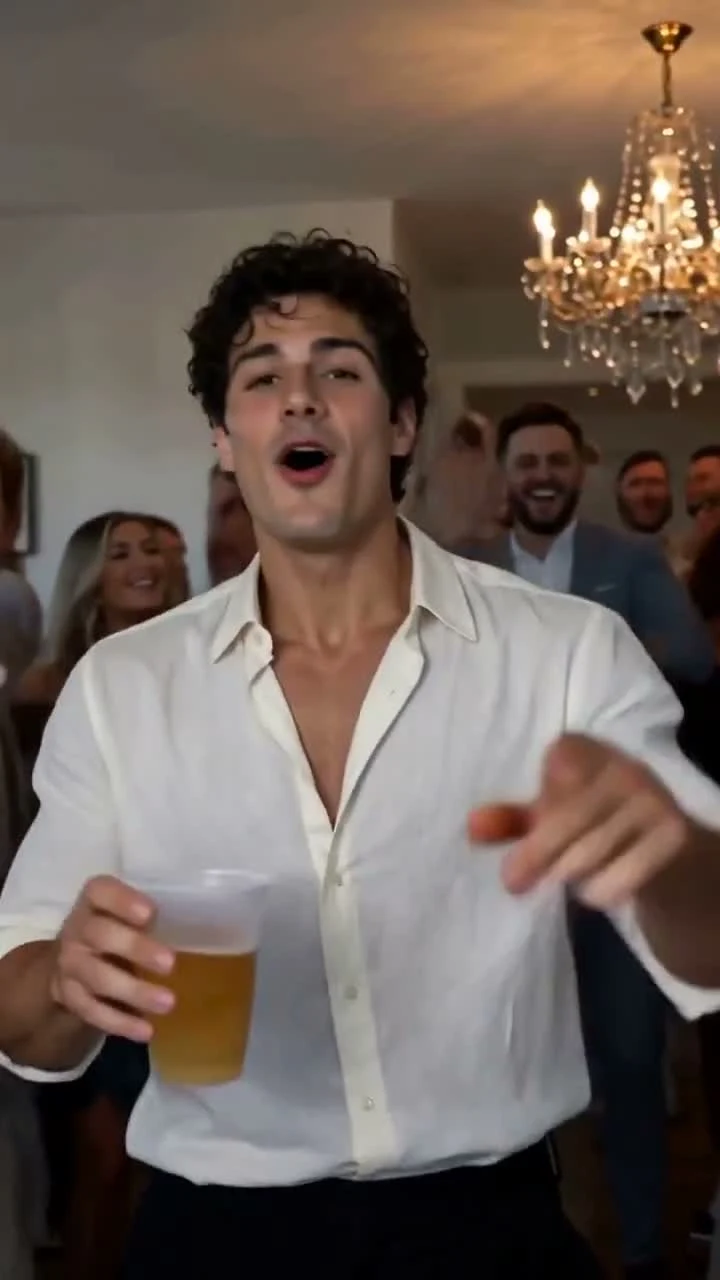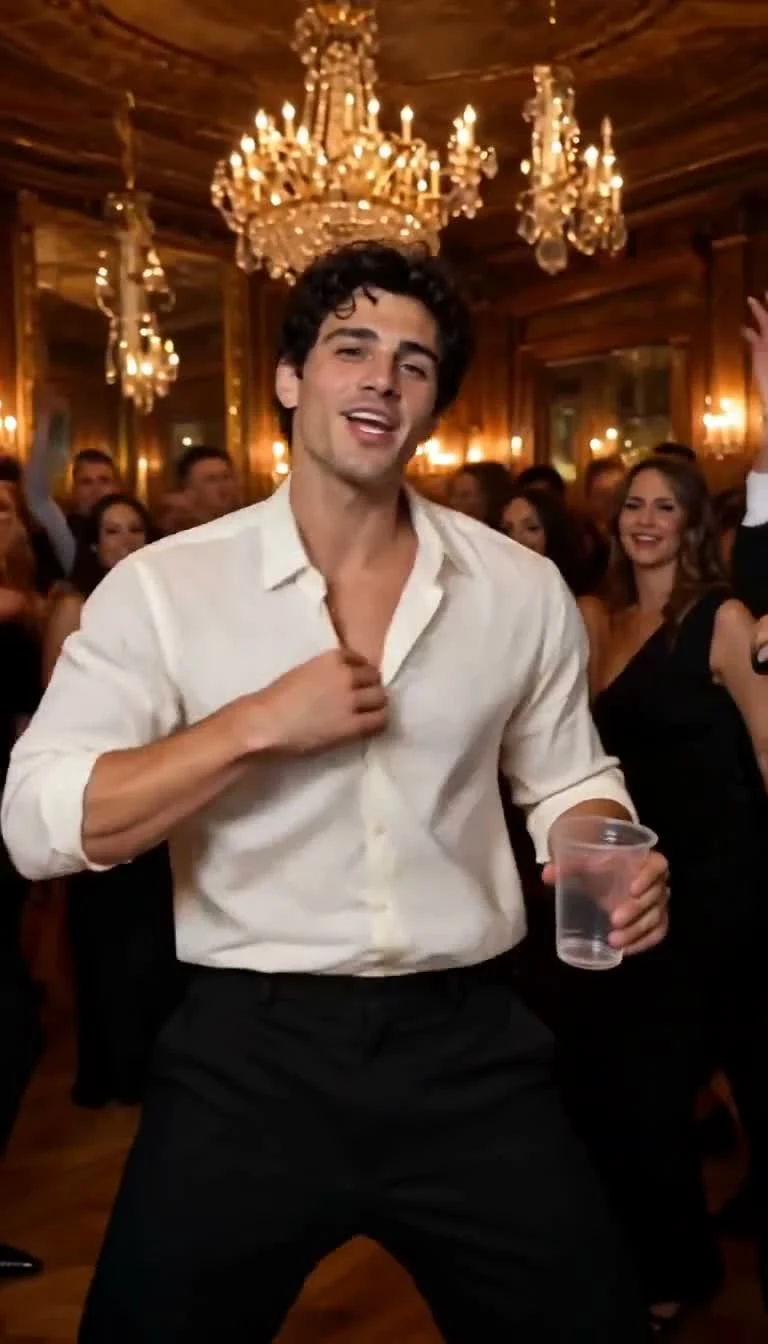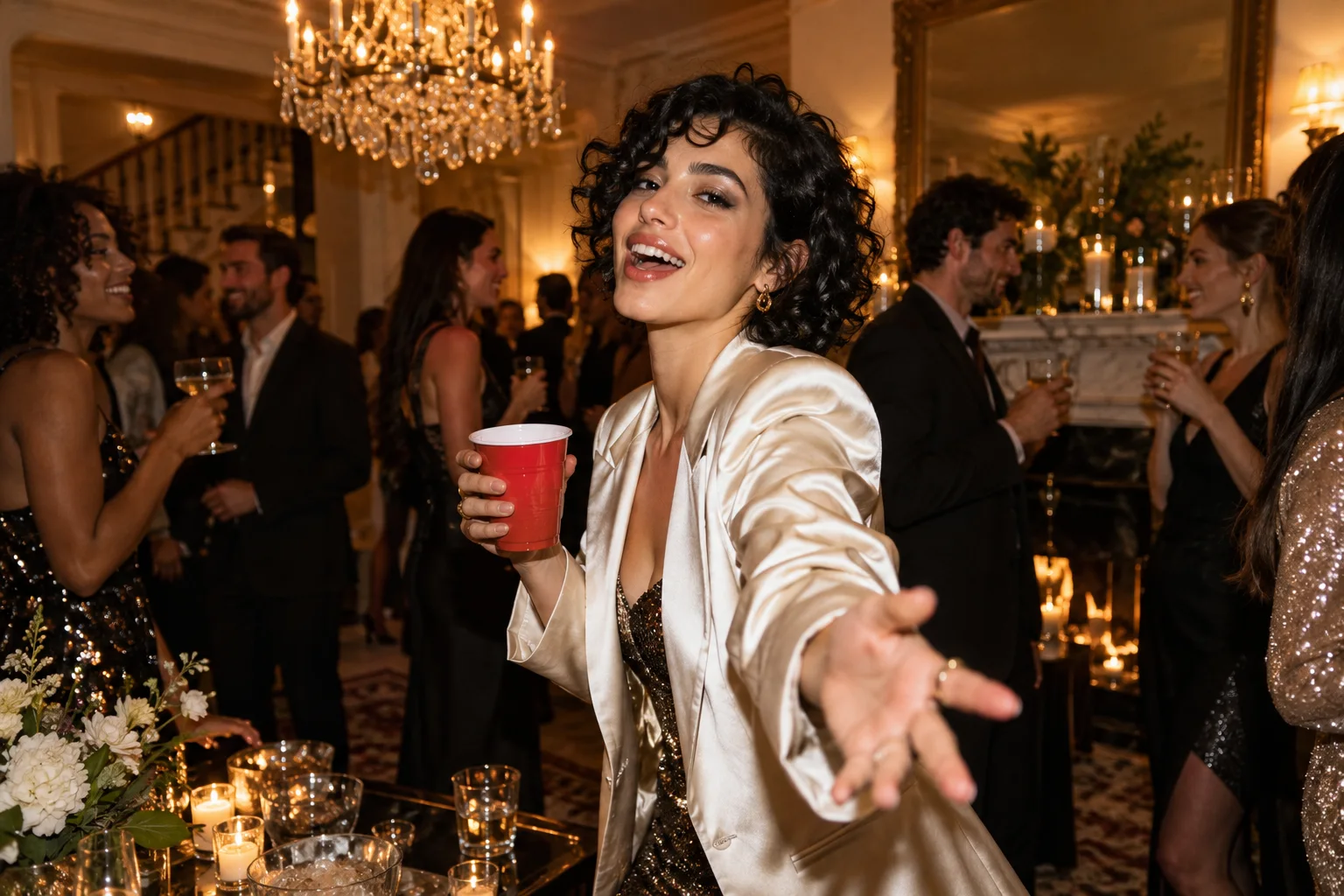
Give your Burning Bridges AI video a strong opening, a readable face and one clear idea. Those choices make a party clip easier to understand on a phone. The final post should feel deliberate from the first frame to the last, with captions and sound supporting the performance.
Burning Bridges AI gives you a focused starting point: one adult portrait and a prepared scene. The current workflow offers a 15-second native H3 party performance with picture and sound, account playback and downloads. The public sample measures 768 × 1344 pixels; check how your chosen social layout crops that portrait frame. This guide explains the practical decisions that turn a completed file into a polished TikTok or Instagram post.
Burning Bridges AI video for TikTok/Instagram: plan the post
Before adding text, watch the downloaded video once without stopping. Identify its strongest readable moment: a recognizable face, a clear gesture or an expressive pose. Then decide what the viewer needs to know immediately.
An opening such as “When the quiet friend finally comes out” sets up a specific joke. “A birthday entrance worth remembering” establishes a celebration. Choose one idea. If the opening needs three explanatory sentences, simplify the premise before decorating the video.
You can trim or rearrange the downloaded clip in an external editor. Keep enough lead-in for a gesture to make sense; a cut directly into a moving hand can make the opening feel accidental.
Keep the portrait composition intact on TikTok and Instagram
Create a vertical project and import the original download. Check that the editor has not silently zoomed the image to fill a different canvas. Cropping can remove a hand, cut off the top of the head or hide the cup that makes an action readable.
Preview the face and upper body through the entire sequence. A layout that looks excellent on the opening frame may collide with a hand later. Keep important text away from the main subject, and use TikTok's or Instagram's preview to check how its buttons and caption areas overlap your edit.
Burning Bridges AI's portrait target is a valuable practical advantage here: the creative brief already prioritizes a tall frame. Your edit can build on that composition directly.
Make TikTok and Instagram captions serve the scene
Use a short headline with enough contrast to read against both bright lights and dark clothing. A simple background strip or restrained text shadow can help when the party background changes behind the words.
Place one thought on screen at a time. If you use a setup and a punchline, let each appear at the relevant moment. Keep names, dates and invitation details on a separate title or end card when they need longer reading time.
Test at ordinary phone size. Text that looks elegant on a large desktop preview can become tiring to read in a handheld feed.
Listen before adding a TikTok or Instagram soundtrack
Play the file with sound enabled and decide whether its existing audio supports your post. If you add music in an editing or publishing app, check the combined mix rather than assuming both tracks will work together.
Use audio you are entitled to publish for your intended account and use. The current generator uses a fixed audio reference for native sound and does not provide a custom soundtrack upload. Listen to the generated track first, then make a deliberate audio choice in this final editing stage; a generated file alone does not establish music rights.
Review the video before uploading to TikTok or Instagram
Use the actual downloaded video as your source. Screen recording a browser preview can introduce interface elements, playback interruptions and an unnecessary extra processing step.
After editing, open the exported file independently. Check the beginning, the hand-and-face interactions and the ending. Confirm that the sound starts where you expect and that no title card cuts off too soon. Finally, inspect the draft inside TikTok or Instagram before publishing; this catches issues that an editor preview cannot show.
Give your TikTok or Instagram post a reason to be shared
A memorable post usually has a recognizable person and a clear situation. Invite a response that fits the joke: “Who in the group is making this entrance?” is more useful than a pile of unrelated tags. Describe the clip accurately as AI-generated and keep the caption connected to what the viewer actually sees.
Find your premise in our seven creative video ideas, and use the resolution guide to understand the source file. Start with a strong portrait and prepare it in the Burning Bridges AI studio.
A few more answers
Frequently asked questions
- Does Burning Bridges AI publish directly to TikTok or Instagram?
- Use account playback to review a completed result, download the video, then upload it through your chosen social app. Automatic social publishing is not part of this workflow.
- Should I export a landscape version first?
- The current workflow generates native 768P portrait video; its public sample measures 768 × 1344 pixels. Start with the original downloaded file and inspect any crop needed by your social editor.
- Can I add my own music and captions?
- Add captions and permitted music after download in your editing or publishing app. Burning Bridges AI's current generator does not accept a custom soundtrack or text-overlay instructions.